本指南为工厂系列的收尾篇,介绍了在管道末端创建开口法兰或盲板法兰的多种方法。该工作流涉及提取法兰几何形状并计算一个工作点,以便将设计模型与现有特征对齐。在本示例中,法兰将被放置在阀门的开口端,然后再连接到管道上。
练习数据
Exercise CAD file (.dwg format)
裁剪感兴趣区域
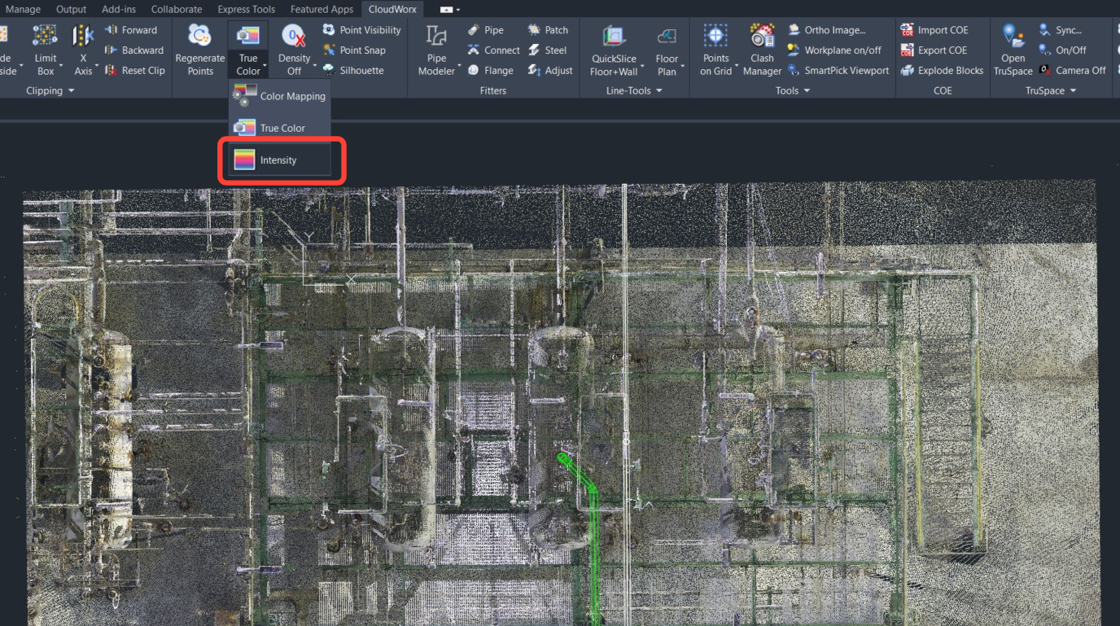
- 在 Rendering 面板中,将 Color Mapping 设置为 Intensity。
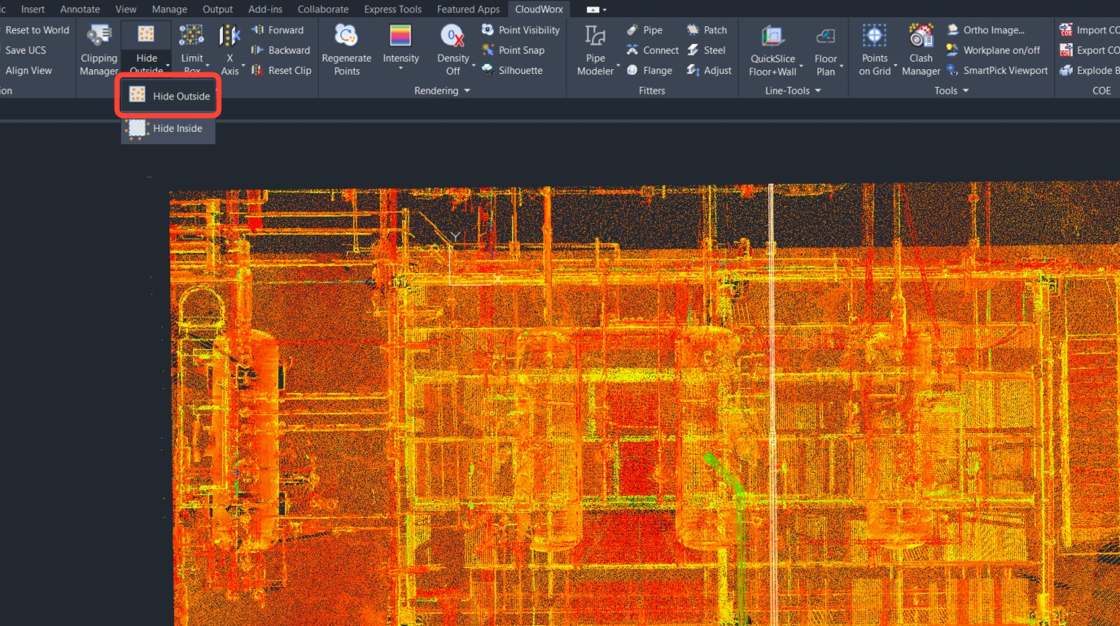
 2. 在 Clipping 面板中,单击 Hide Outside,或在命令行中输入 CWHIDEOUT。
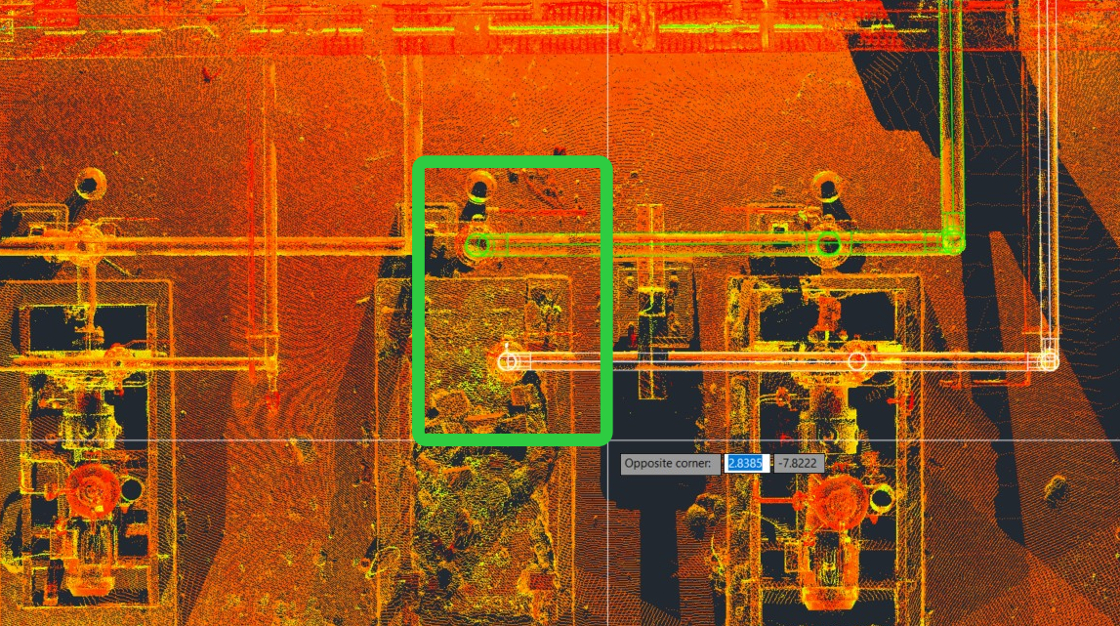
 3. 在命令行中,选择 Rectangle 或输入 R,然后按照提示围绕感兴趣区域绘制一个矩形围栏。按 Enter 完成围栏创建。
 4. 将视图向左旋转,并放大裁剪后的区域。
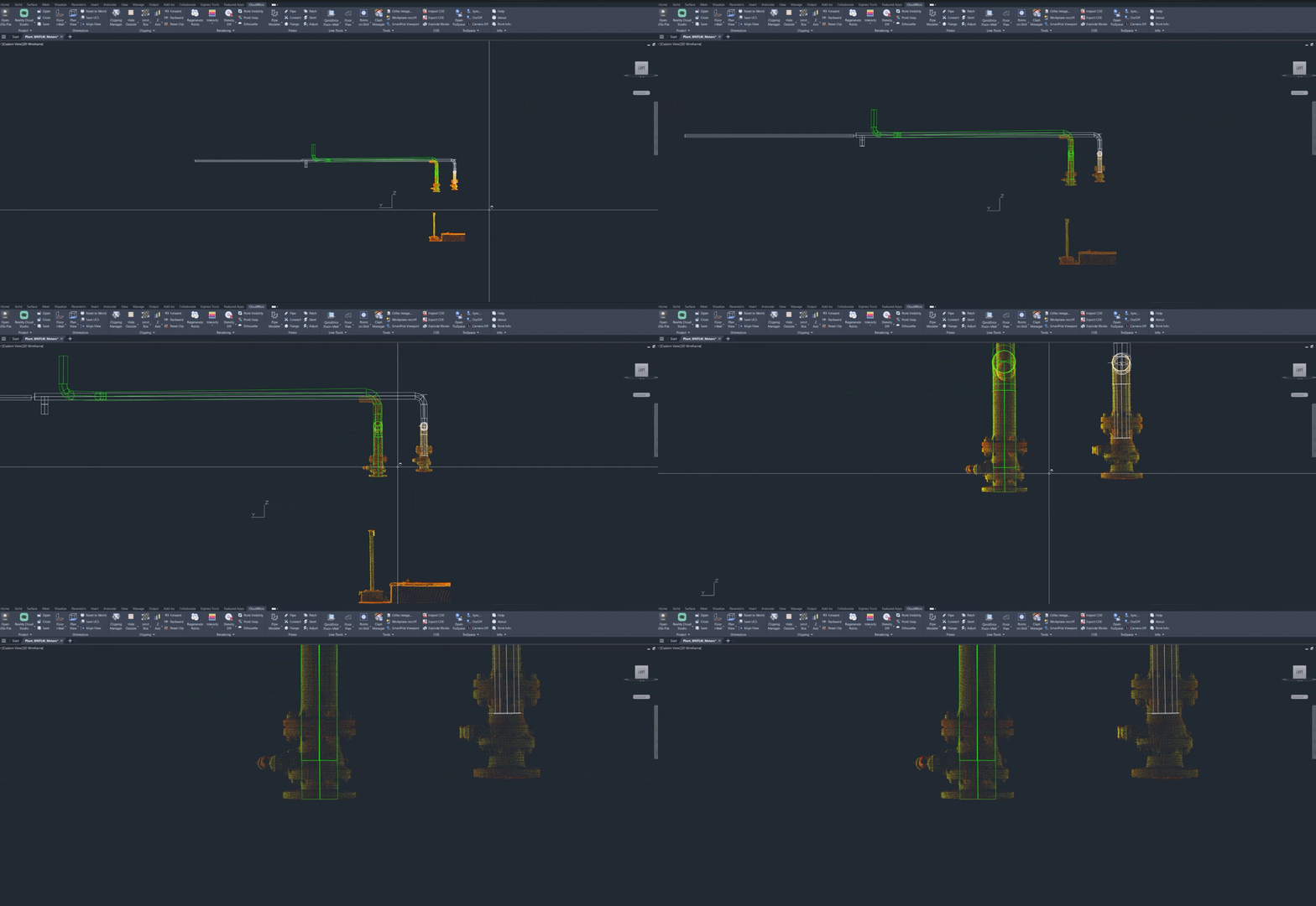
提取法兰几何形状
如上所示,管道末端终止于阀门处。为确保模型与点云准确对齐,本节介绍在阀门端提取法兰几何形状的几种方法。
相邻法
- 确保已启用点捕捉。
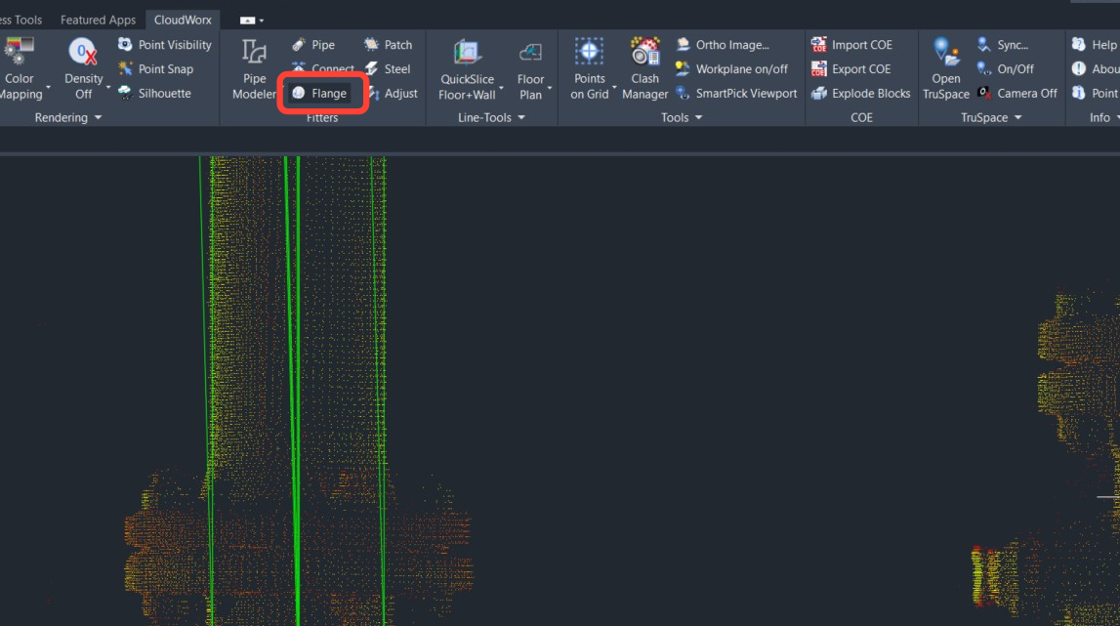
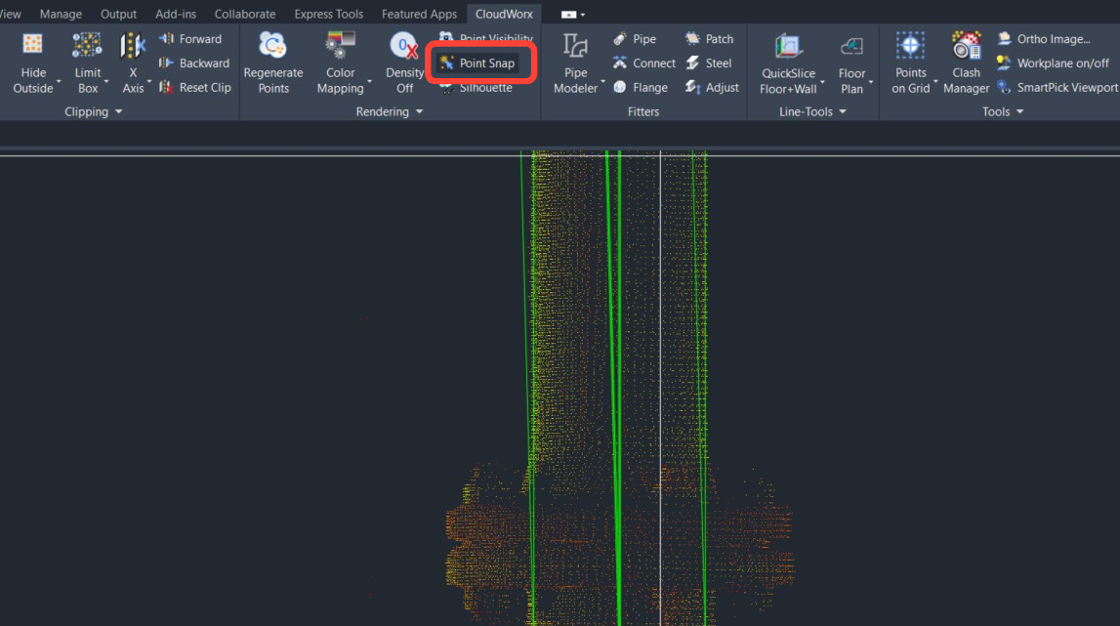 2. 启用 Flange fitter。转到 Fitters | Flange。
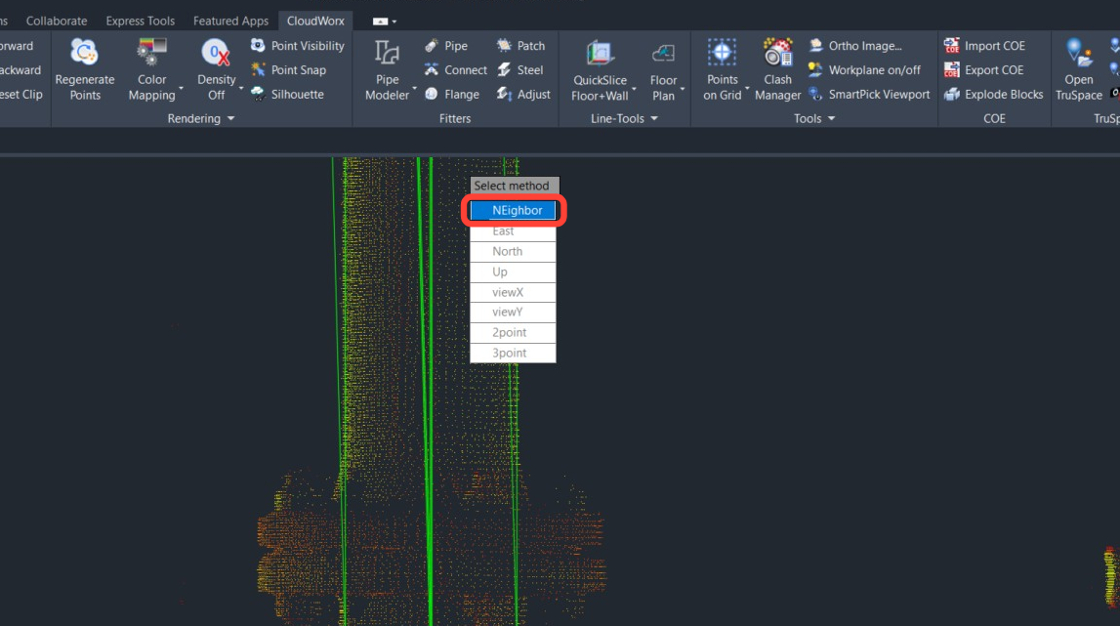
 3. 在弹出菜单中,选择 Neighbor 方法。
 4. 按如下方式配置 fitter:
1. 选中 Centerline 复选框。
2. 选中 Flange 复选框。
3. 选中 Use Catalog 复选框,然后选择所需的目录。在本示例中为 ANSI_LJT_150#。
5. 单击 Pick Point。
4. 按如下方式配置 fitter:
1. 选中 Centerline 复选框。
2. 选中 Flange 复选框。
3. 选中 Use Catalog 复选框,然后选择所需的目录。在本示例中为 ANSI_LJT_150#。
5. 单击 Pick Point。
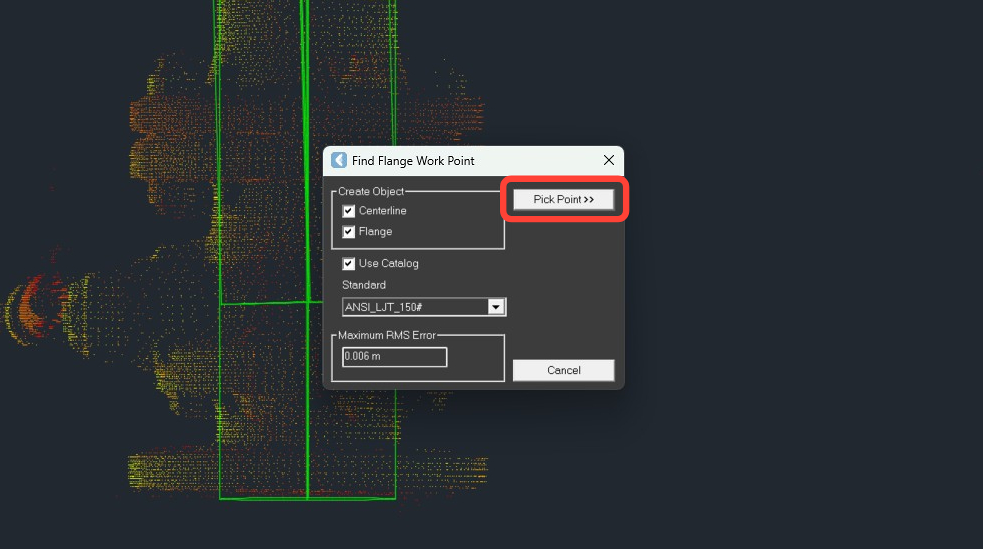 6. 首先,在连接法兰的相邻管段上拾取一个点。
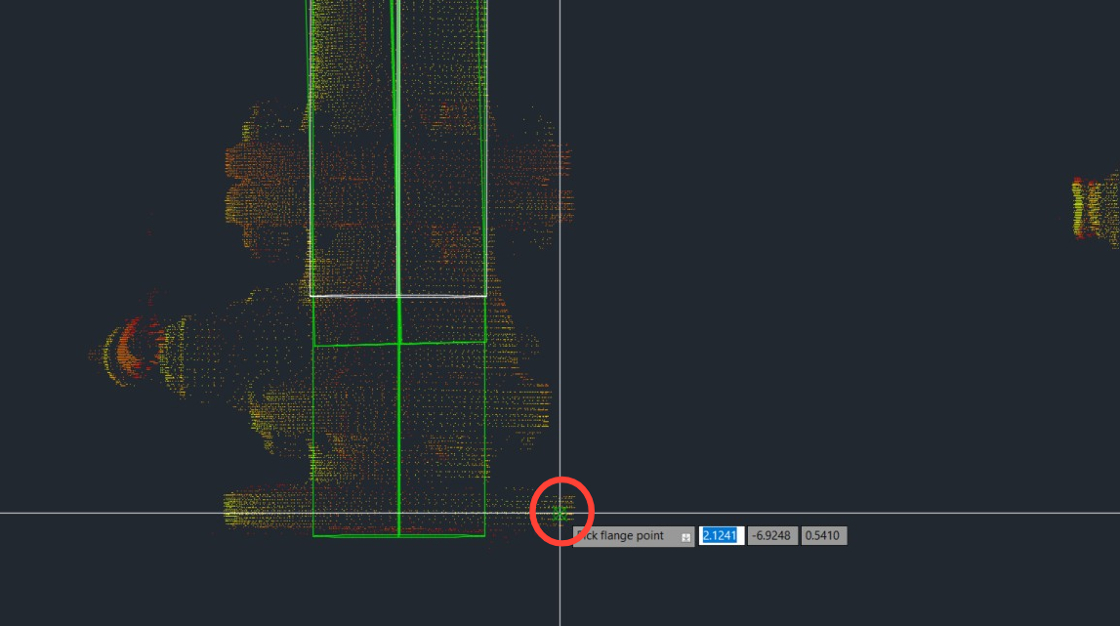
.jpeg) 7. 然后单击法兰边缘上的一个点。
7. 然后单击法兰边缘上的一个点。
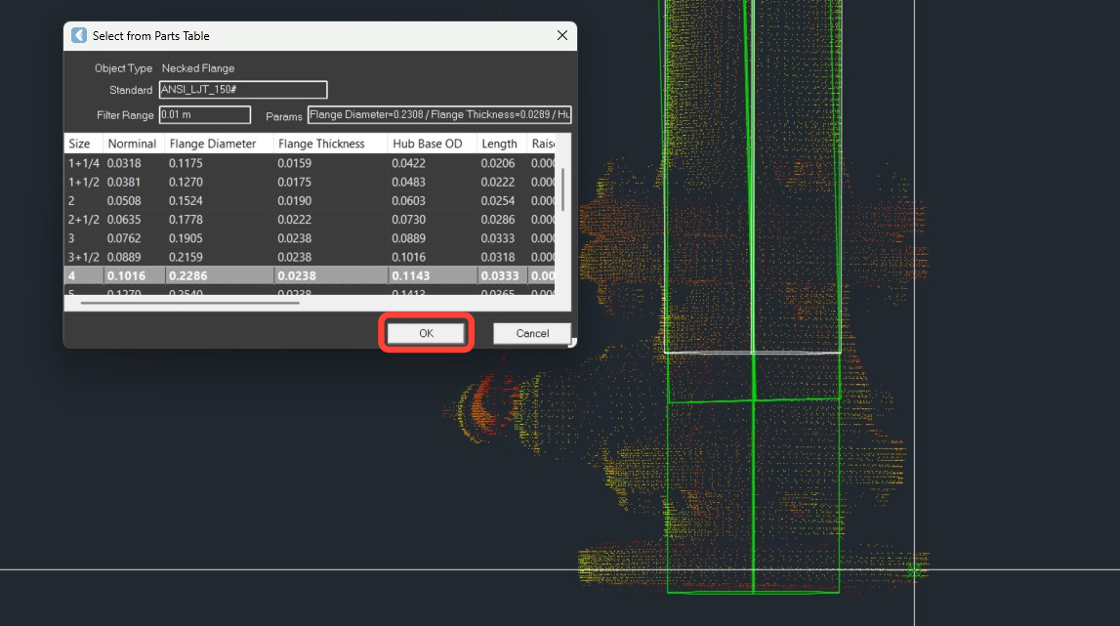
 8. 检查目录拟合结果,然后单击 OK。
 9. 选择法兰面的位置,通常为最低点。按 Enter。
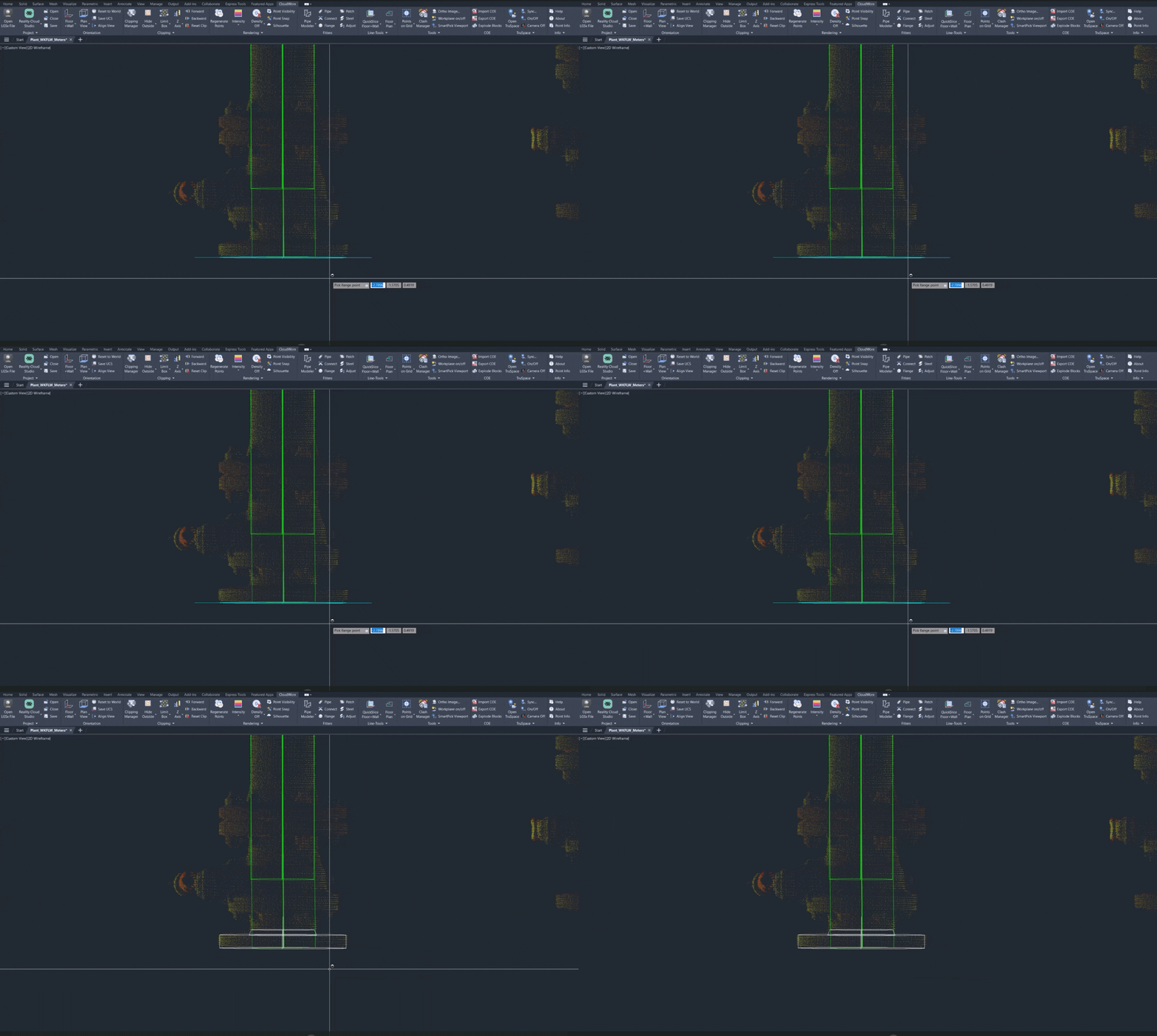
法兰现已创建并放置在阀门末端。
三点法
- 启用 Flange fitter 并选择 3point 方法。
.jpeg) 2. 检查所选的配置(参见步骤 8),然后单击 Pick Point。
2. 检查所选的配置(参见步骤 8),然后单击 Pick Point。
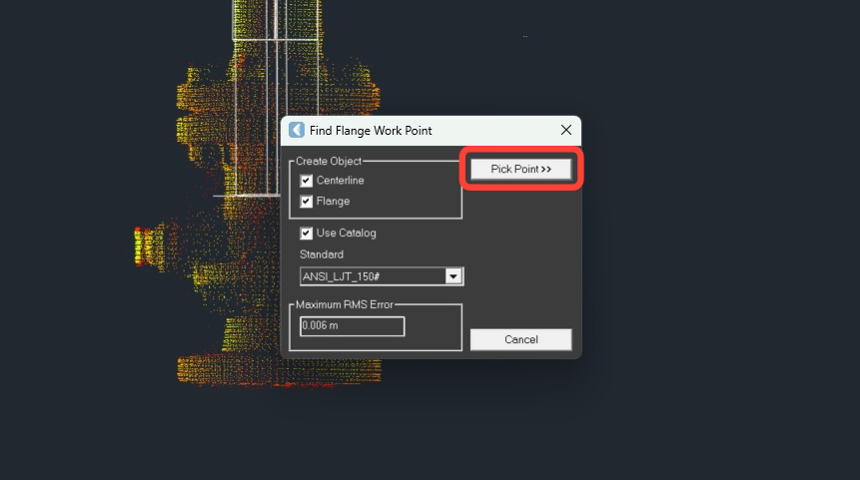 3. 沿法兰边缘选择三个点。然后检查目录拟合结果,并单击 OK。
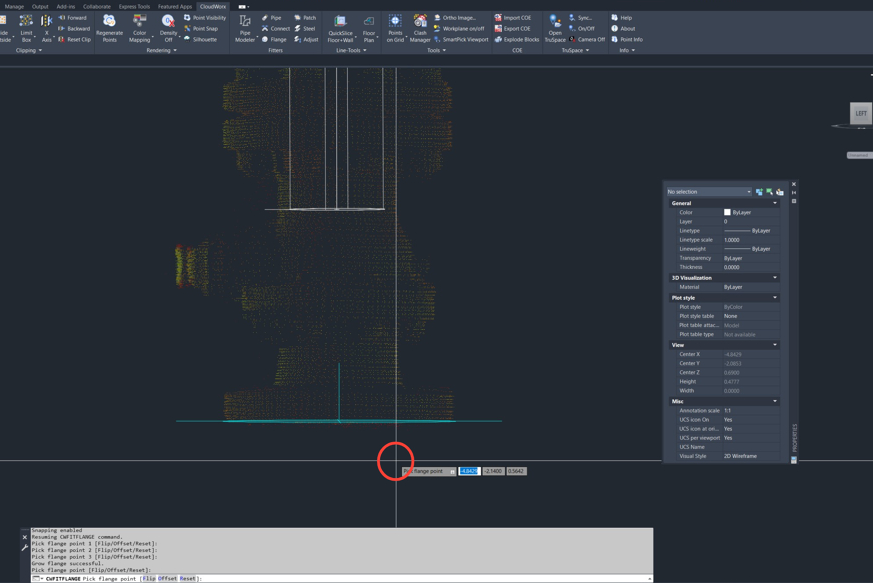
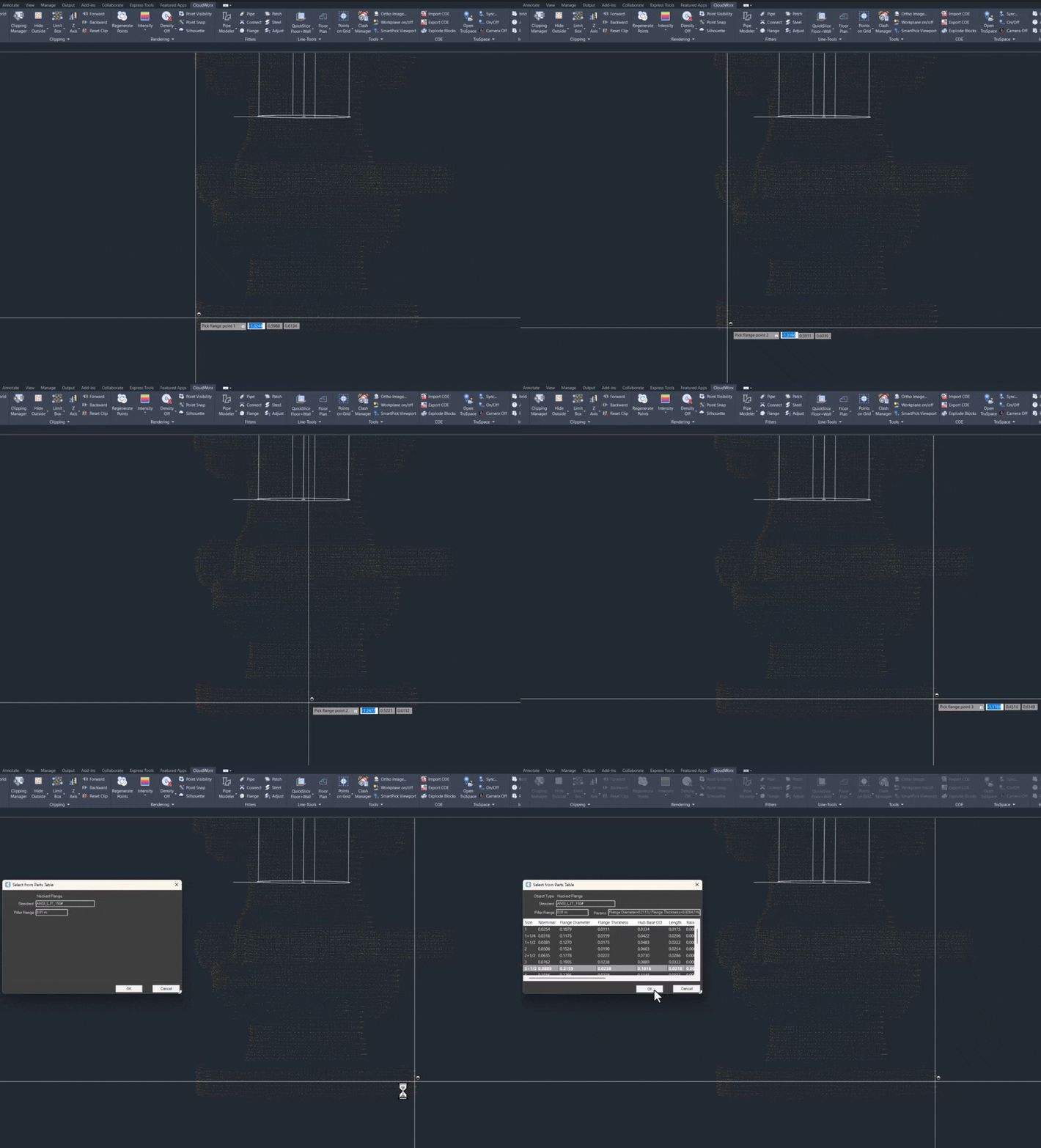 4. 选择法兰面的位置,通常为最低点。然后按 Enter,法兰将被创建,并会计算出一个工作点。
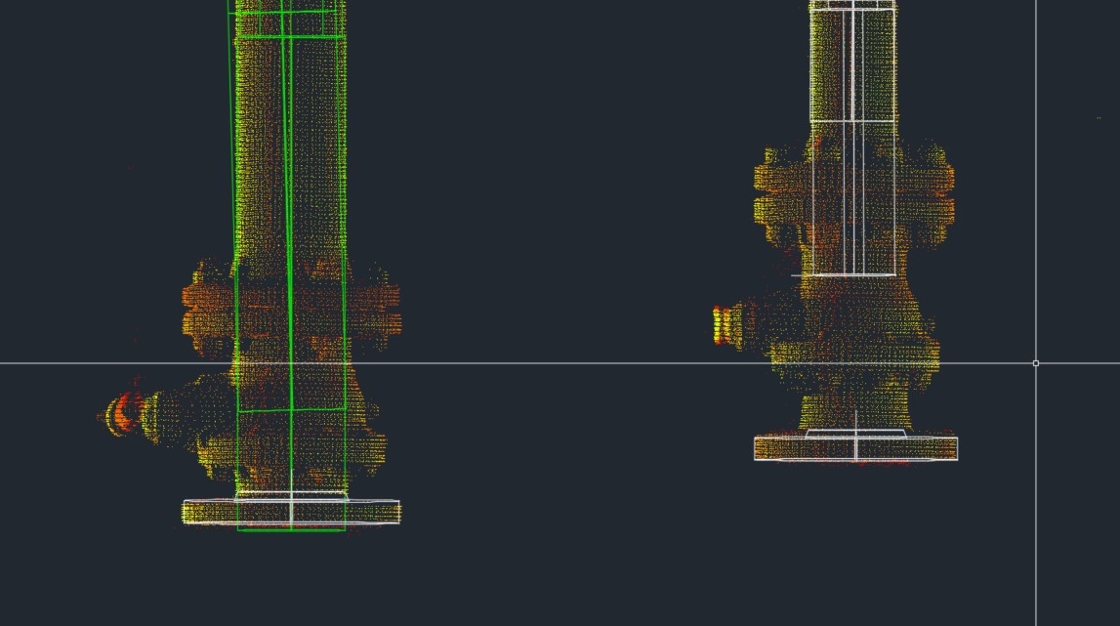
 5. 法兰现已创建并定位在阀门端。请注意,它们并未直接附着在相邻管道上;不过,它们与连接到阀门的末端管段正确对齐。就本练习而言,阀门被忽略。目标是获取一个工作点坐标,以便定位设计模型。
将管道拟合到法兰
为完成该工作流,让我们将管道拟合到法兰上。
- 转到 Solid 选项卡并单击 Presspull。
.jpeg) 2. 选择每个管道末端,并将其延伸到法兰处。
2. 选择每个管道末端,并将其延伸到法兰处。
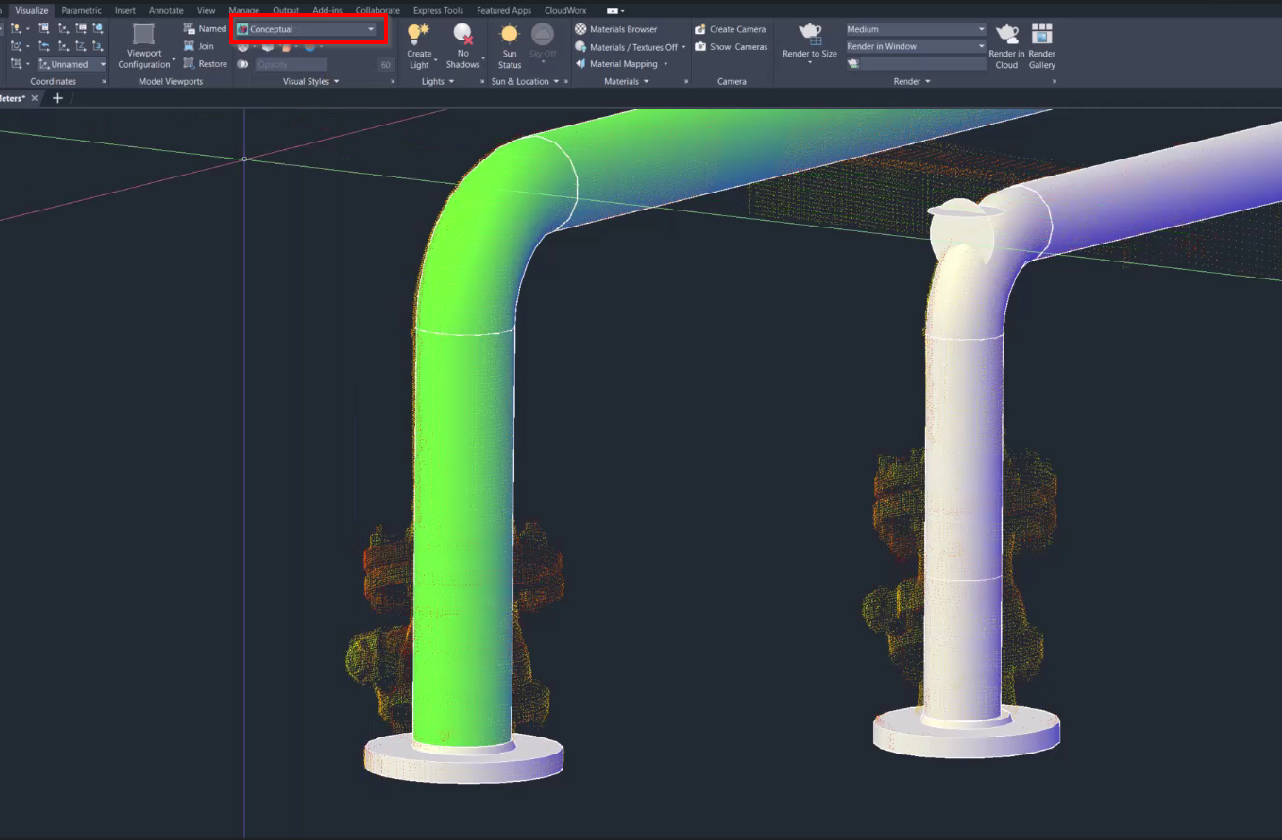
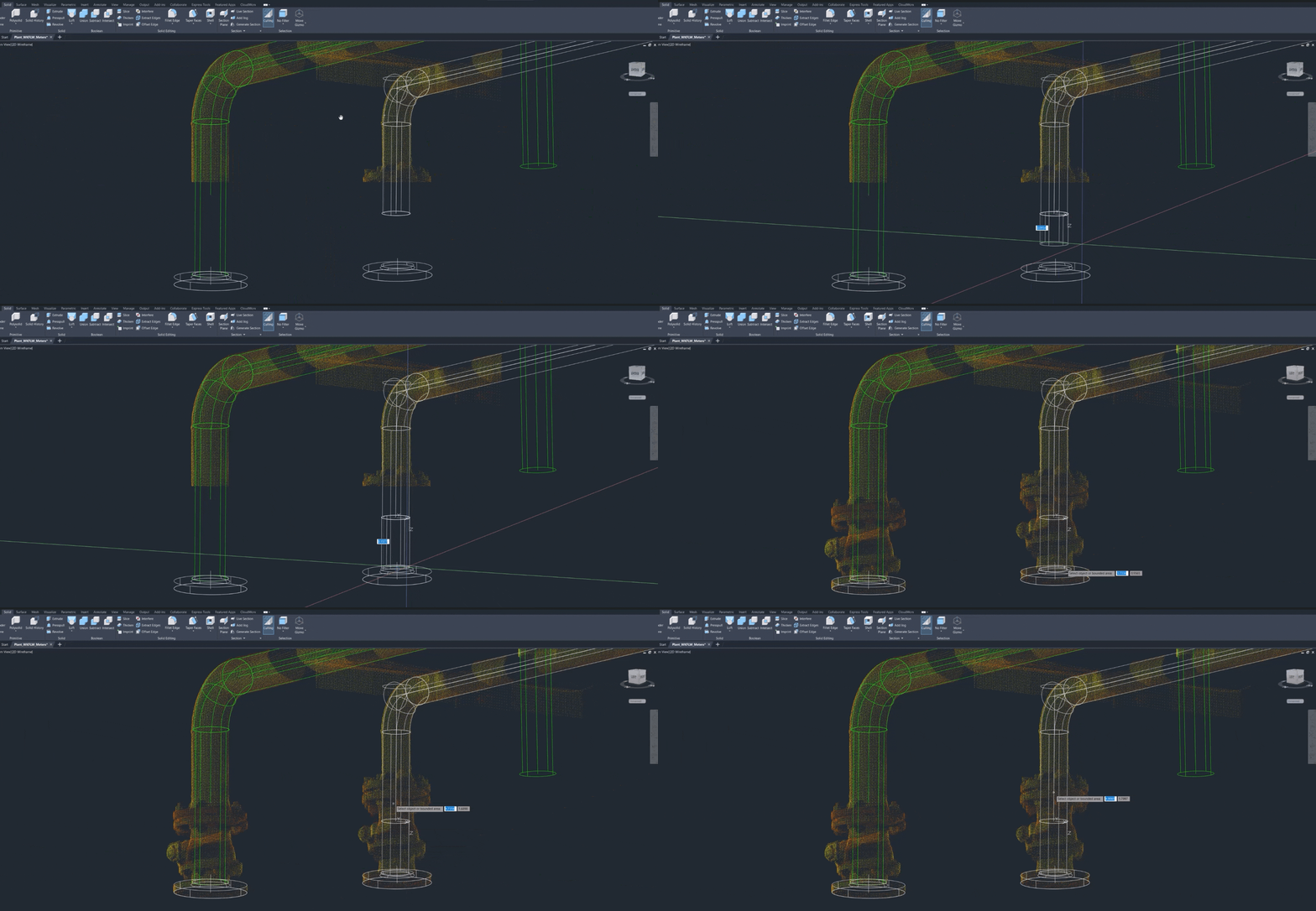 3. 要查看结果,请在 Visualize 选项卡上将视觉样式更改为 Conceptual。